
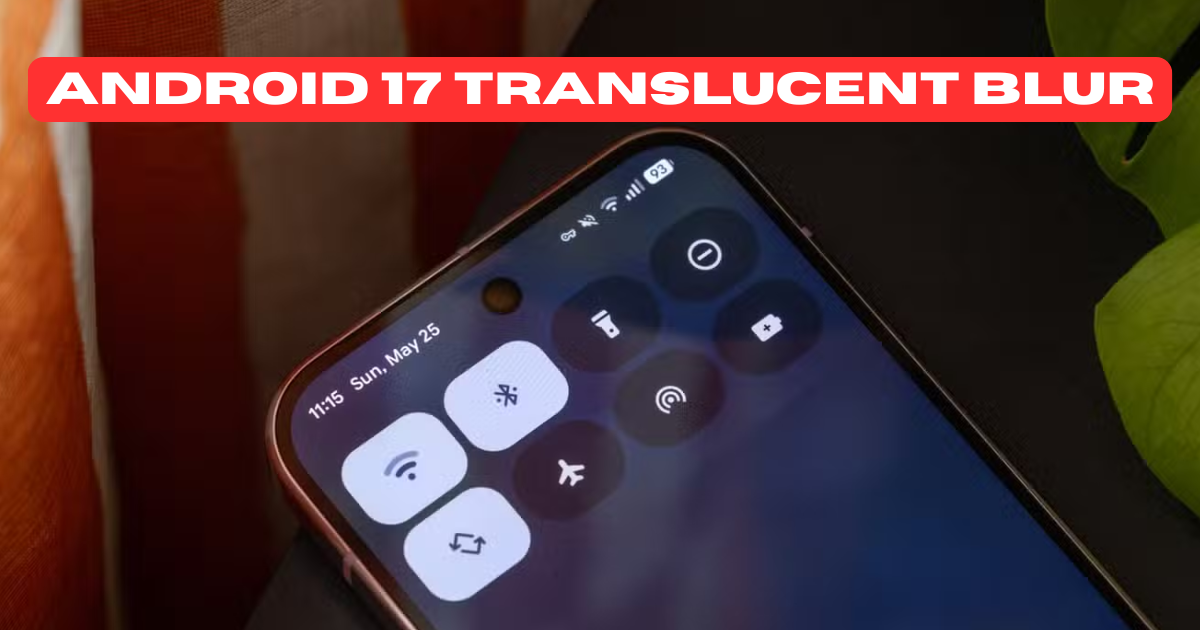
Android 17 translucent UI blur is a new visual design feature expected in Android 17 that adds a soft, frosted-glass blur effect behind system UI elements like quick settings, notifications, app drawers, and backgrounds. This blur makes the interface look more modern, clean, and premium, similar to glass-like designs seen in other operating systems, while still keeping Android’s identity intact.
What Is Android 17 Translucent UI Blur?
Android 17 translucent UI blur is a system-level visual effect where backgrounds are partially blurred instead of being fully opaque or fully transparent.
In simple words:
👉 You can see what’s behind, but it’s softly blurred, not sharp.
This helps:
Reduce visual clutter
Improve focus on the foreground
Make the UI look smoother and more premium
Why Google Is Bringing Translucent Blur in Android 17
Google has been slowly improving Android’s design with Material You, and Android 17 continues that journey.
Main reasons:
Modern UI trend (glassmorphism)
Better depth perception
More immersive user experience
Competitive design with other platforms
Cleaner look without distracting backgrounds
Where You’ll See Translucent Blur in Android 17
The Android 17 translucent UI blur is expected to appear in multiple places:
1. Quick Settings Panel
Background behind toggles will be blurred
Wallpaper remains visible but soft
Makes controls stand out clearly
2. Notification Shade
Notifications float over a blurred background
Better readability without hiding the wallpaper completely
3. App Drawer
Semi-transparent blur over home screen
Icons feel layered and smooth
4. Recent Apps (Overview Screen)
Blurred app previews
Better app separation and depth
5. System Dialogs & Pop-ups
Permission dialogs look cleaner
Less harsh solid backgrounds
How Android 17 Translucent Blur Is Different from Old Android Transparency
Older Android versions used simple transparency, not real blur.
| Old Android | Android 17 |
|---|---|
| Flat transparency | Real-time background blur |
| Distracting | Clean & focused |
| Low depth | Strong depth effect |
| Less premium | Premium glass-like feel |
Android 17 blur is dynamic, meaning it adapts to wallpapers, themes, and motion.
Performance Impact: Will Translucent UI Blur Slow Down Phones?
Good question — and important.
Google is optimizing Android 17 translucent UI blur to:
Use GPU acceleration
Apply blur only where needed
Automatically disable on low-end devices if required
Expected Result:
Flagship phones: No noticeable lag
Mid-range phones: Smooth
Entry-level phones: Blur may be limited or optional
Can You Turn Off Translucent UI Blur in Android 17?
Yes, Android 17 is expected to give users control.
Possible options:
Disable blur in Accessibility settings
Reduce blur intensity
Turn off for battery saving
OEM-specific toggles (Samsung, Pixel, etc.)
This ensures:
Better battery life
Accessibility support
Personal preference control
Android 17 Translucent UI Blur vs iOS Glass UI
Many users compare Android 17 blur with iOS.
Here’s the difference:
Android 17: Customizable, theme-aware, Material You based
iOS: Fixed style, limited customization
Android focuses on user control, not just visuals.
Which Phones Will Get Android 17 Translucent UI Blur?
Most likely:
Google Pixel devices (first)
Samsung Galaxy phones with One UI
Xiaomi, OnePlus, Realme (with custom skins)
Flagship and upper mid-range devices
OEMs may tweak the blur style based on their UI.
Why Android 17 Translucent UI Blur Is Important for the Future
This is not just a design change.
It shows:
Android is evolving visually
Focus on user experience
Better balance between beauty and usability
Preparation for AR, AI, and immersive interfaces
Final Thoughts
Android 17 translucent UI blur is a major visual upgrade that makes Android feel more modern, smooth, and premium without sacrificing performance or customization. It’s subtle, useful, and future-ready — exactly what users want from the next Android version.
If implemented well, this could be one of the best Android UI improvements in years.